Receive and send Fax from the web interface.
We will see how you can access the faxes you receive from the web interface.
Note: Send/Receive Fax limit: 20Mb or 100 pages (whichever comes first).
Note: We do not support international faxing.
- First you will need to log into the Web portal by going to this addresse: https://portal.tayotelecom.com/
- You will get prompted with the following log in screen.
- The username is normally your email addresse (also can find the information in the welcome email that was sent)
- The password is the one that you configured during the welcome email.
- You will see the following web interface.
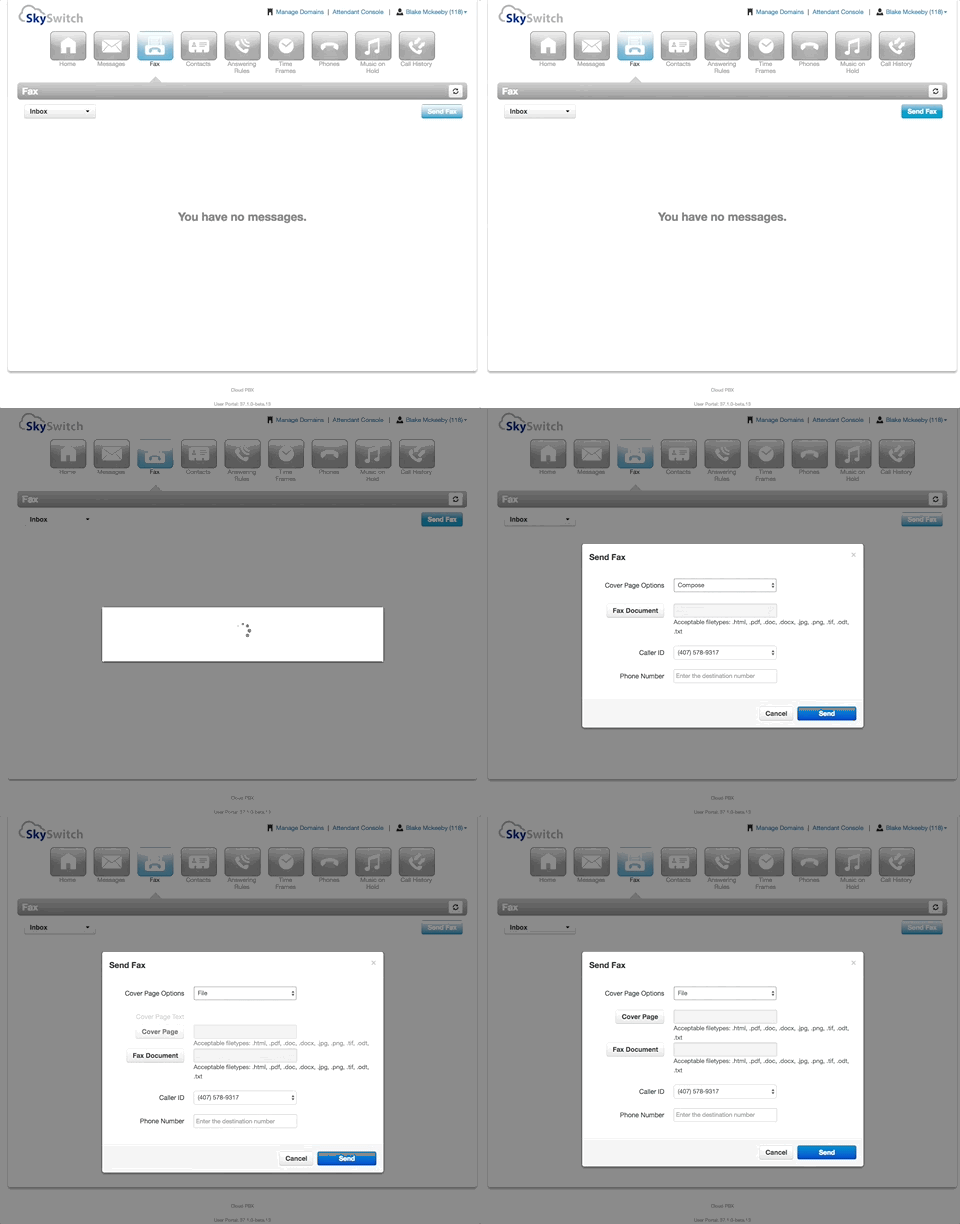
- Select FAX in the top menu.
- You will see all the fax that you receive in this window. (In the top left corner dropdown menu make sure you are inside the inbox)
- Step by Step Instructions to Send a Fax:
- Click the Send Fax button.
- Choose the appropriate Cover Page option:
- None
- Compose - This option will allow you to enter the text that will be sent as a cover page.
- File - This option will allow you to choose a file which will be sent as a cover page. The system accepts the following files formats for the cover page: html; pdf; doc; docx; jpg; png; odt.
- Choose a file to be faxed. The system accepts the following files formats for the fax document: html; pdf; doc; docx; jpg; png; odt.
- Select the Caller ID number that you wish to appear on the outbound fax.
- Enter the phone number of the fax recipient in the Phone Number field. 10 or 11 digit phone numbers are accepted but not 7 digits.
- Click the Send button
- When the fax is accepted by the Fax Server, a notification message will be displayed.
- Once you send the fax you can go in the top left corner dropdown menu and select the sent box to see the FAX you have sent.
Related Articles
Sending an Outbound Fax by Email
Using an email client like MS Outlook, you can send your fax to any 11-digit US/Canada number using the format DID@instant-fax.com (eg. 12033045246@instant-fax.com). Fax Caller ID when Sending an Outbound Fax by Email You can now have a Fax Caller ID ...Access personal voicemail from the web portal
You can access your voicemail from any web browser that as access to the internet. From the portal you can do the following. You see all your messages. You can enable or disable your voicemail. You can set where the call would be transfer if the user ...How to enable or disable call forwards.
We will see how to enable or disable call forwards using either the phone to dial it in or the web portal. How to enable call forwarding. If you are calling from the extension that you are forwarding look at the following examples. NOTE: Forwarding ...IOS device softphone
In this guide we will be looking into installing and configuring the application on your IOS device. You will need to download the application by going to this link. You can also search for ReachUC in the App store. Start the application, you will be ...Android device softphone
In this guide we will be looking into installing and configuring the application on your Android device. You will need to download the application by going to this link. You can also search for ReachUC in the play store. Start the application, you ...